

A step-by-step guide to installing OceanCRM’s WhatsApp Extension from a ZIP file — no Chrome Web Store required.
Most Chrome extensions install with a single click from the Web Store. But OceanCRM’s WhatsApp Extension is a custom-built internal tool — and it comes as a .zip file. This guide walks you through every step, from downloading the file to seeing it live in your browser. No technical knowledge needed.
Step 1: Download the Extension from Google Drive
You’ll receive a Google Drive link for the OceanCRM WhatsApp Extension. Open that link in your Chrome browser.
Once the folder opens, click the “Download All” button at the top right. This will save a ZIP file to your computer’s Downloads folder.
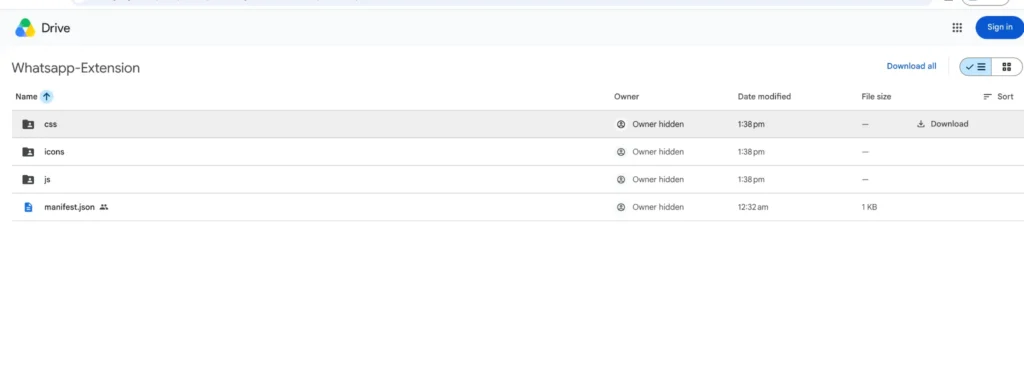
Tip: If the Download All button is not visible, select all files inside the folder first, then the button will appear.
Step 2: Extract the ZIP File
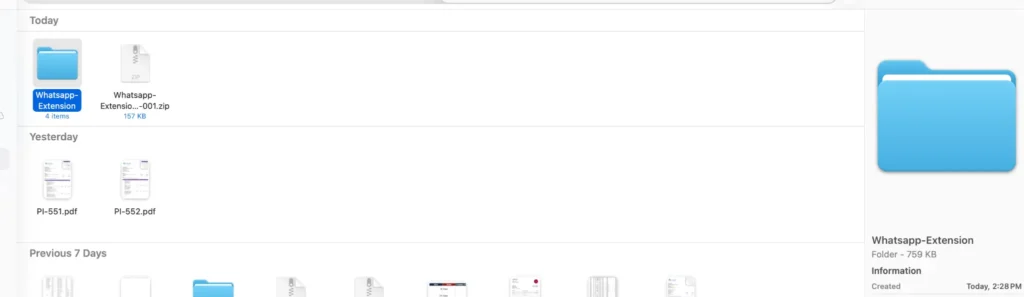
Open your Downloads folder and find the ZIP file you just downloaded.
- Windows: Right-click the file and select “Extract All”
- Mac: Double-click the ZIP file — it extracts automatically
This creates a new folder with all the extension files inside. Remember where this folder is saved — you will need it in Step 5.
Step 3: Open Chrome Extensions and Enable Developer Mode
Open Google Chrome and go to the Extensions page. You can do this two ways:
- Type chrome://extensions in the address bar and press Enter
- Or click the three-dot menu (⋮) → Extensions → Manage Extensions
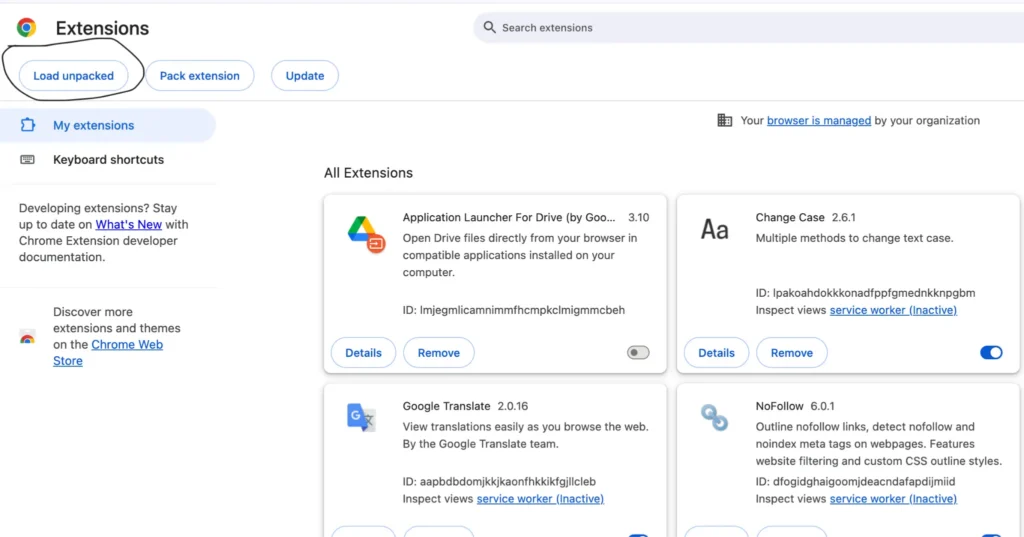
On the Extensions page, find the “Developer mode” toggle in the top right corner. Switch it ON . Three new buttons will appear on the top left of the page.
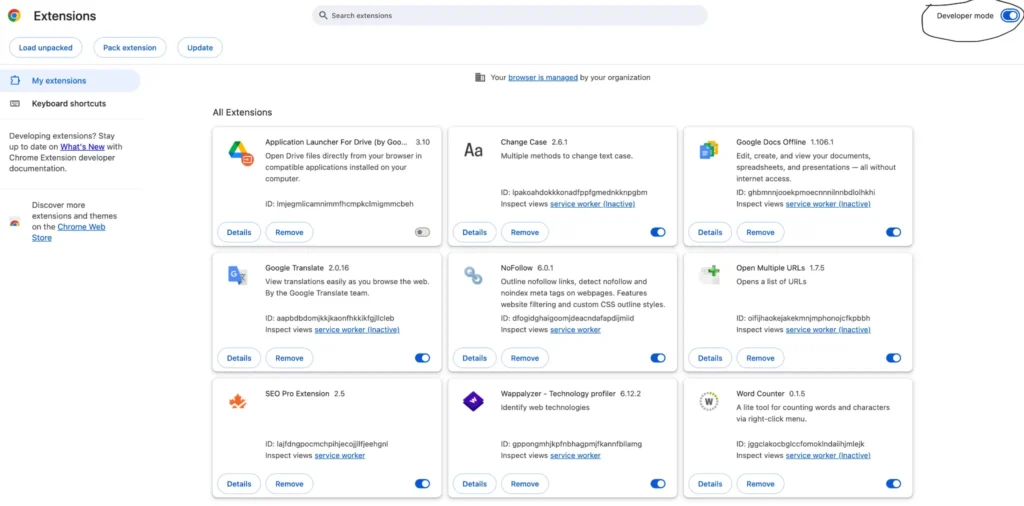
Important: Developer Mode must be ON before you can load a custom extension. Without it, the “Load Unpacked” button will not appear.
Step 4: Click “Load Unpacked”
After enabling Developer Mode, three buttons appear at the top left of the Extensions page. Click the “Load Unpacked” button.
A file browser window will open on your screen immediately.
Step 5: Select the Extension Folder
In the file browser window, navigate to the folder you extracted in Step 2. Click on that folder to select it, then click the “Select Folder” button.
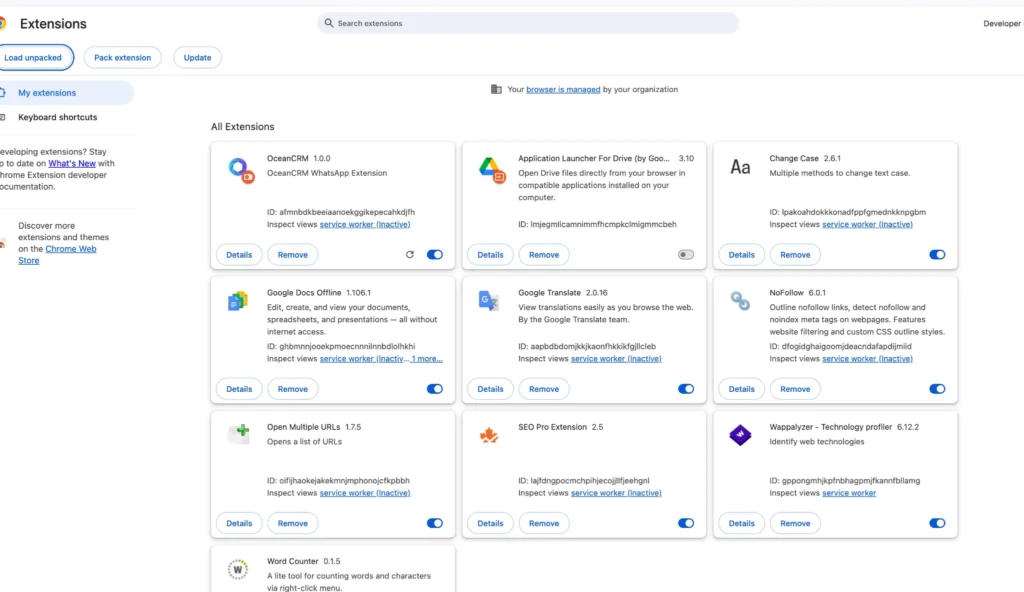
Chrome will install the extension instantly. The OceanCRM WhatsApp Extension will appear in your extensions list right away.
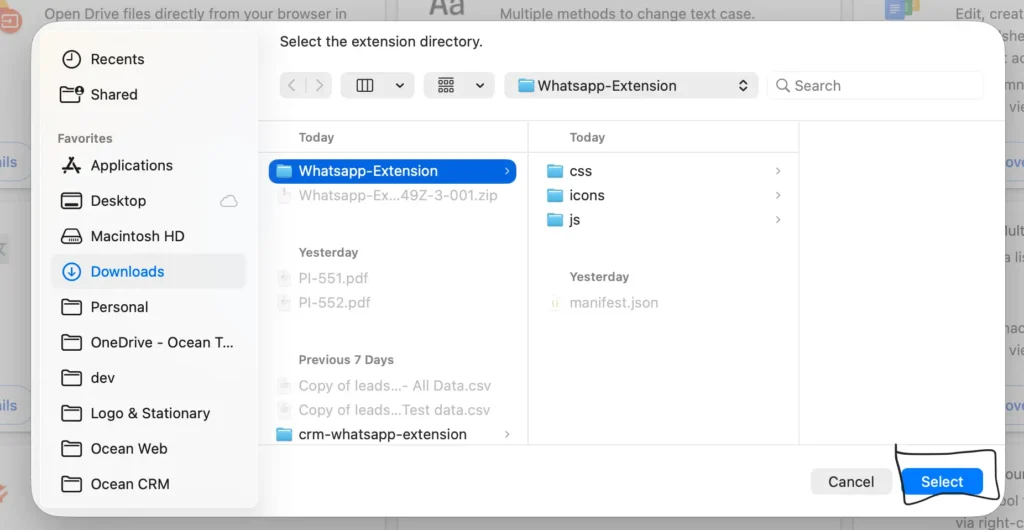
Remember: Select the extracted folder — not the ZIP file itself. The folder contains the actual files Chrome needs to run the extension.
OceanCRM WhatsApp Extension is Now Live!
The extension is installed and active in your Chrome browser. If you don’t see the icon in the toolbar, click the puzzle icon (🧩) next to the address bar and pin the extension for quick access.
Troubleshooting Common Issues
Extension not loading after clicking Load Unpacked?
Make sure you selected the extracted folder, not the ZIP file itself. The folder should contain a file called manifest.json .
Load Unpacked button not visible?
Developer Mode must be turned ON first. Look for the toggle in the top right corner of the Extensions page.
Extension disappeared after restarting Chrome?
Re-enable Developer Mode and reload the extension from the same folder. This happens when Developer Mode gets turned off automatically.
Can’t find the Download All button in Google Drive?
Select all files inside the folder first, then the Download All button will appear at the top.
Chrome showing a security warning?
This is normal for manually installed extensions. Click “Keep” or “Allow” — the extension is built by Ocean Technolab and is completely safe.